Welcome
CryptPad is a free, private office suite that runs in your browser.
Your files are encrypted, and it works on any device — computer, tablet, or phone.
Start here
- Ask for your credentials!!!
- Open CryptPad
- Find your files
- Create a document
- Write and format text
That’s all you need. The four pages are short, and each one has pictures.
Want more details? See the official CryptPad documentation.
1. Open CryptPad
CryptPad runs in your browser. There is nothing to download.
Do this
- Open your browser and go to https://cryptpad.fr.
- Log in using your given credentials.
Optional: homepage shortcut or install it like an app
This puts an icon on your home screen or desktop.
- Chrome / Edge: menu ⋮ → Install
- Safari (iPhone / iPad): Share ↑ → Add to Home Screen
- Firefox: menu ⋮ → Add to shortcuts
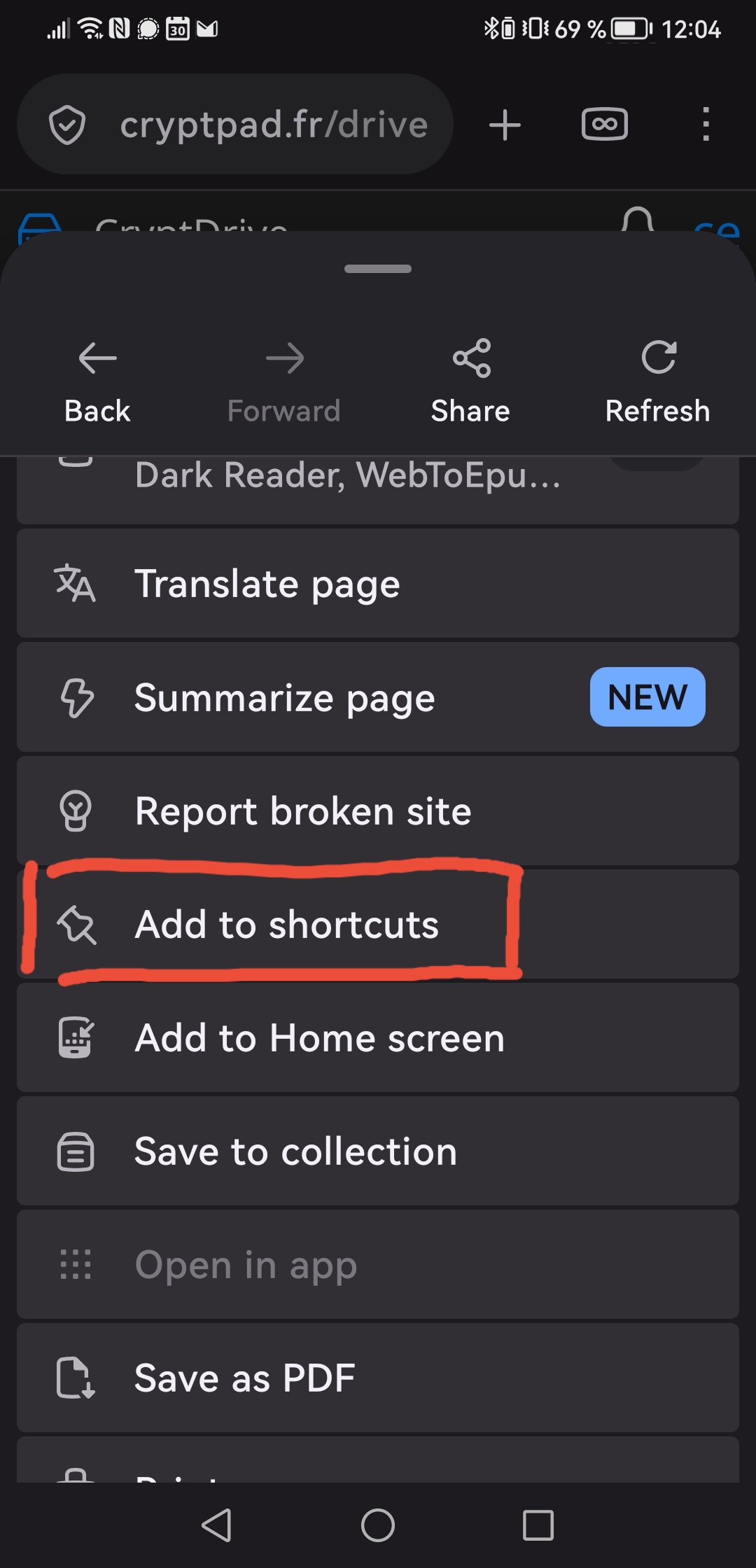
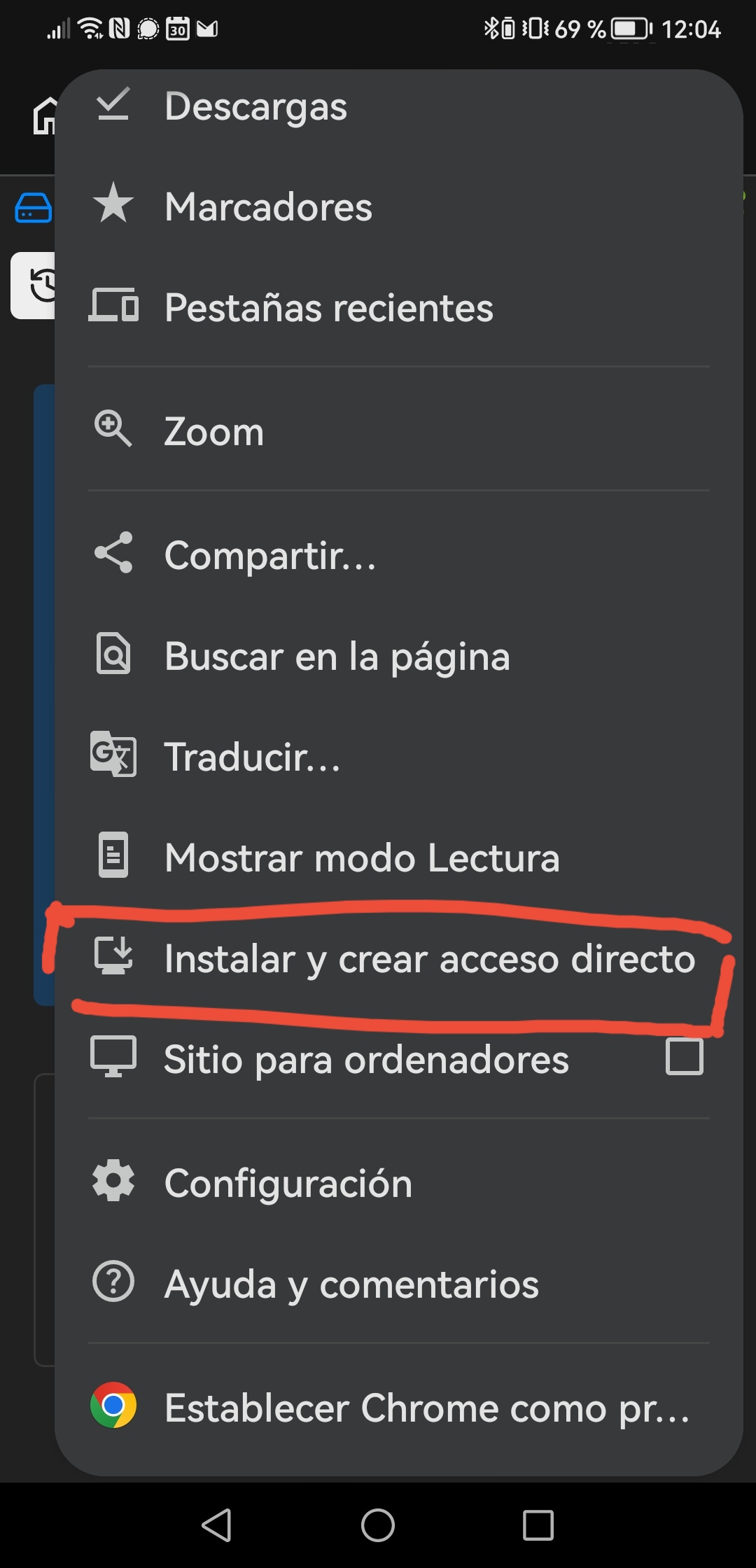
Tip: A guest file is only saved in this browser. Create an account to keep it.
2. Find your files
Your files live in CryptDrive — the CryptPad file manager.
Do this
- Click the CryptPad logo (top-left) or the Drive button to open CryptDrive.
- Now you can manage your files normally:
- Click New → Folder to make a folder.
- Drag a file onto a folder to move it.
- Type in the search bar to find a file.
- Use the view toggle to switch between list and grid.
Tip: Drag files between folders in the left sidebar to reorganise quickly.
3. Create a document
Press Ctrl + E, or click New in CryptDrive.
Choose a type
| Type | Use it for |
|---|---|
| Rich text | Letters, notes, reports |
| Sheet | Tables and budgets |
| Presentation | Slides |
| Kanban | Task boards |
| Whiteboard | Sketches and diagrams |
| Code | Code and plain text |
Not sure? Choose Rich text. It works like a normal word processor.
4. Write and format
The Rich text editor works like a word processor. It saves automatically.
Do this
- Write your text.
- Select text, then use Bold, Italic, or the list buttons.
- For a title, choose Heading 1 or Heading 2 in the formatting menu.
- To download a copy, open File → Export and choose
.docx,.html, or.md.
Tip: Look for the Saved indicator in the toolbar. You do not need to press Save.
Help & glossary
Shortcuts
| Shortcut | What it does |
|---|---|
| Ctrl + E | New document |
| Ctrl + S | Save (you rarely need this) |
On a Mac, use ⌘ instead of Ctrl.
Words explained
- CryptPad — a private office suite in your browser.
- CryptDrive — your file manager in CryptPad.
- Guest — using CryptPad without an account.
- PWA — a website you can install like an app.
- Export — download a copy of a file.
Need more help?
Still stuck? Ask your local nerds.